A profile picture is often the first impression people get of you online. Whether it's for LinkedIn, Instagram, Twitter, Facebook, or any other platform, a well-cropped profile photo signals professionalism and attention to detail. Yet many people simply drag a corner of the crop tool and accept whatever result they get. Here's how to do it right.
Understanding Profile Picture Requirements
Most social platforms display profile pictures as circles, though some (like LinkedIn's company pages) use squares. Regardless of the display shape, the underlying image is typically stored as a square. Understanding this helps you crop appropriately—what's centered in a square will likely be centered in a circle, but the corners will be clipped.
Key dimensions by platform: While each platform has specific pixel requirements, the common thread is that you should always start with a square image at sufficient resolution. For most platforms, a 400×400px or 800×800px square works across all contexts. Higher resolution (up to 1080×1080px) gives platforms more pixels to work with when generating thumbnails and ensures your photo looks sharp on high-DPI displays.
Step 1: Start with a High-Resolution Original
Most platforms display profile pictures at relatively small sizes—typically 100-200px on screens—but they store the uploaded version and generate thumbnails from it. If you upload a small, low-resolution image, it will look pixelated or blurry when scaled up. Always start with the highest-resolution version you have.
Minimum recommendations: For professional platforms like LinkedIn, start with at least 400×400px. For visual platforms like Instagram, 1080×1080px is ideal. If you have a high-resolution photo from a modern smartphone (12MP or more), that's perfect—you can crop down to the square you need without losing quality.
Step 2: Choose the Right Subject and Composition
Not every photo is suitable for a profile picture. The best profile pictures share these characteristics:
- Face clearly visible: The subject's face should be well-lit and unobstructed. Avoid sunglasses, heavy shadows, or turned-away angles.
- Simple background: A clean, uncluttered background keeps focus on the subject. Blurred backgrounds (bokeh) work well.
- Good lighting: Natural light or well-balanced studio lighting. Avoid harsh shadows or overexposed highlights.
- Current appearance: Your profile picture should represent how you currently look—outdated photos create confusion in professional contexts.
- Appropriate context: LinkedIn requires professional attire; Instagram can be more casual. Match the photo to the platform.
Step 3: Use a 1:1 Aspect Ratio Lock
All major platforms display profile pictures as circles or squares, which means you need a perfect square crop. Our Image Cropper has a 1:1 preset that locks the crop to a perfect square—no guessing, no manual dimension entry. This ensures your crop is exactly square before you export.
Why aspect ratio lock matters: If you freehand crop, you might end up with a 1.05:1 ratio that looks fine until the platform forces it into a square and stretches or crops it. Locking to 1:1 eliminates this variable entirely.
Step 4: Position the Crop Correctly
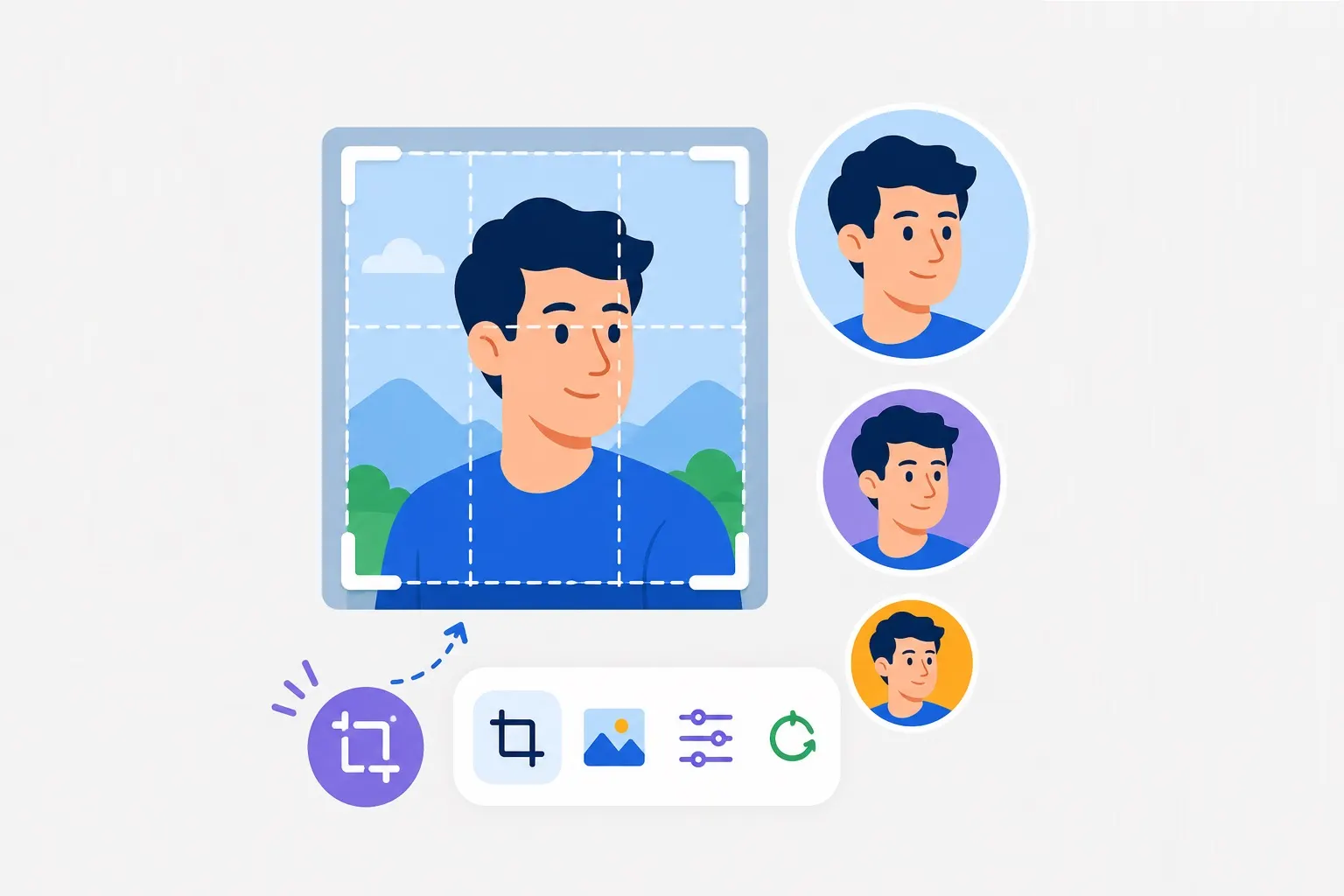
Once you have a square crop, positioning is everything. The goal is to center the subject in a way that works both as a square and when the platform applies a circular mask.
The rule of thirds for profile pictures: Position the crop so the subject's eyes are roughly in the upper third of the frame. This leaves room above the head and keeps the face centered vertically. Avoid cropping too tight—leave breathing room on all sides so the image doesn't look cramped when displayed with platform UI elements (like the green "active" dot on some platforms).
Circular mask considerations: Since many platforms display profile pictures as circles, ensure the face is centered enough that no critical features (like the chin or forehead) get clipped by the circular mask. The safe zone for circular masks is roughly the center 70% of the square.
Step 5: Export at the Right Size
After cropping, resize to the appropriate dimensions for your target platform. While a high-resolution square works everywhere, you can optimize file size by targeting the platform's maximum display resolution.
Platform-specific export sizes:
- LinkedIn: 400×400px minimum, but 800×800px gives better results
- Instagram: 320×320px minimum, 1080×1080px for best quality
- Facebook: 320×320px minimum, 720×720px recommended
- Twitter/X: 400×400px minimum, 800×800px ideal
- TikTok: 200×200px minimum, 400×400px recommended
Use our Image Resizer with the exact target dimensions for your platform. The tool includes presets for all major social platforms.
Step 6: Compress for Fast Loading
Profile pictures load frequently—every time someone views a page where you appear, your profile picture loads. Keeping file size small improves page load times for everyone who encounters your profile.
Target file size: Aim for under 100KB for your final profile picture. A well-optimized square image at 400×400px should easily fit under 50KB without visible quality loss. Use our Image Compressor to achieve optimal file sizes.
Advanced Techniques
For those who want to take profile pictures to the next level, consider these advanced approaches:
Background removal: For a clean, professional look, consider removing the background entirely and replacing it with a solid color or gradient. This is particularly effective for LinkedIn where you want the focus entirely on your face. Our Background Remover can handle this automatically.
Light and color adjustments: Even a great photo can benefit from subtle adjustments. Brighten the face slightly, increase contrast for definition, and ensure skin tones are natural. Avoid heavy filters that look artificial or unprofessional.
Consistent branding across platforms: If you maintain a personal or business brand across multiple platforms, consider using the same profile picture everywhere. This creates recognition and makes it easier for people to identify you across different networks.
Common Mistakes to Avoid
Even with good intentions, it's easy to make mistakes. Here's what to watch out for:
- Cropping too tight: When the face fills the entire square, it looks cramped and can be clipped by circular masks.
- Using group photos: A profile picture should be just you—cropping someone else out of a group photo often looks awkward.
- Excessive filters: Heavy filters or extreme editing can look unprofessional, especially on LinkedIn.
- Low resolution: Blurry or pixelated images suggest a lack of attention to detail.
- Busy backgrounds: Distracting backgrounds pull attention away from the subject.
- Outdated photos: If you've significantly changed your appearance, update your photo.
Conclusion: A Professional First Impression
Your profile picture is often the first thing people see when they encounter you online. Taking the time to crop it correctly—using the right dimensions, proper composition, and optimization—pays dividends in how you're perceived. With the tools and techniques covered in this guide, you can create profile pictures that look professional on any platform, from LinkedIn to Instagram and everything in between.